 patrickz
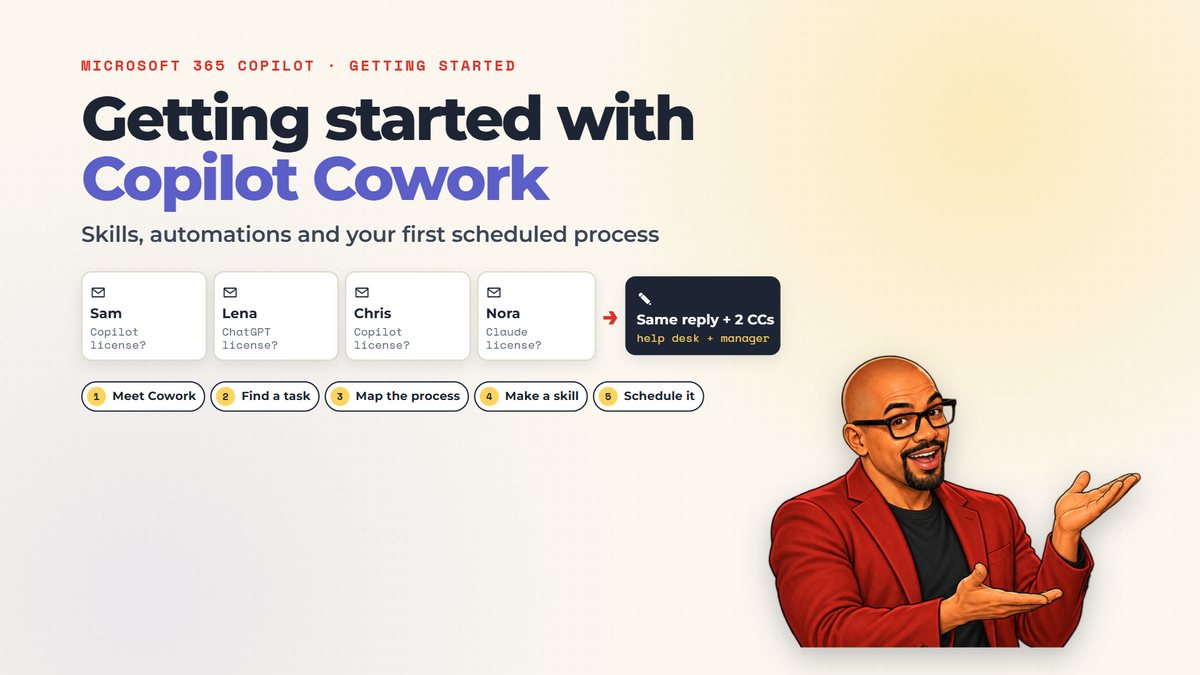
The request I answer every week, the same way every time
Part of my job is approving AI tool licenses. Every week the same emails arrive: can I get Copilot? Can I get ChatGPT? And every approval has to copy two people, the help desk, who assigns the license, and the person’s manager.
That is exactly the kind of work Microsoft 365 Copilot Cowork is good at, and a lot of my colleagues have access to it without having tried it. So I made a getting-started video and guide around this one example. It starts by asking Cowork to find a repeat task in your email, then adds the pieces that make automation click: skills, sharing, scheduling a skill, and the business process underneath all of it.
The result answers routine requests on its own every weekday morning, always with the help desk and the manager on CC, and sends me anything unusual.
Watch the result
Getting started with Copilot Cowork: skills and automations
The walkthrough behind the steps below. The Cowork screens are a staged demo with fictional people and email. Patrick’s voice is AI-generated with GPT Live, and the captions are burned in.
Read the video as text
Patrick: I approve AI tool licenses for my team. Every week: can I get Copilot? Can I get ChatGPT? And every reply must copy the help desk and their manager.
Patrick: Today I’ll show you how Cowork can find a chore like that, learn my rules as a skill, and run it on a schedule, while I stay in charge.
Patrick: Quick heads-up: this is a staged demo with made-up emails, and your screen may look a little different.
Patrick: See Cowork next to Chat in Microsoft 365 Copilot? You’re ready. If not, check with your IT team.
Patrick: Chat is for quick answers. Cowork handles work with several steps, and asks before important actions, like sending an email. It only uses what you can already access.
Patrick: Two words for today: a skill is the how, your rules for one job. And an automation is the when, a schedule that runs them.
Patrick: First, let’s find the chore. I’ll ask Cowork to review two weeks of email, and just recommend.
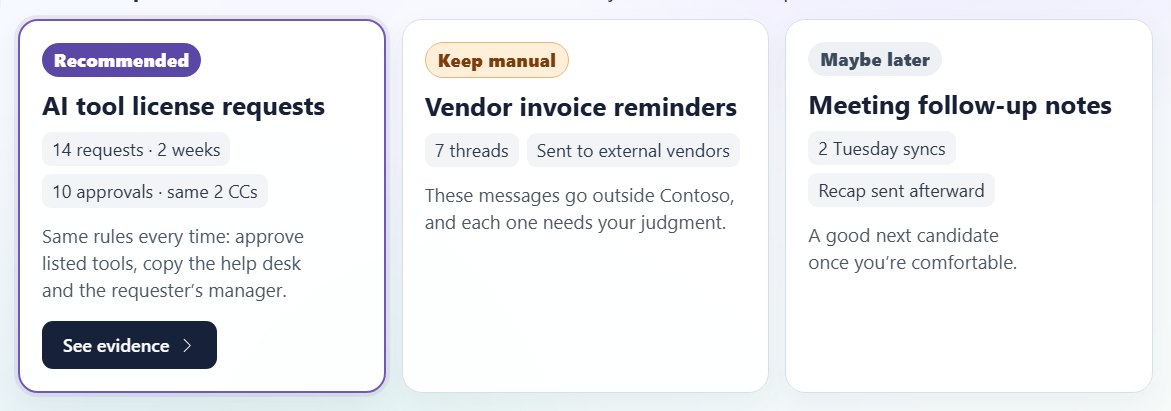
Patrick: It found three, and flagged vendor invoices to keep manual. The top one: AI license requests. Fourteen in two weeks, answered the same way every time. Apparently, I’m a template.
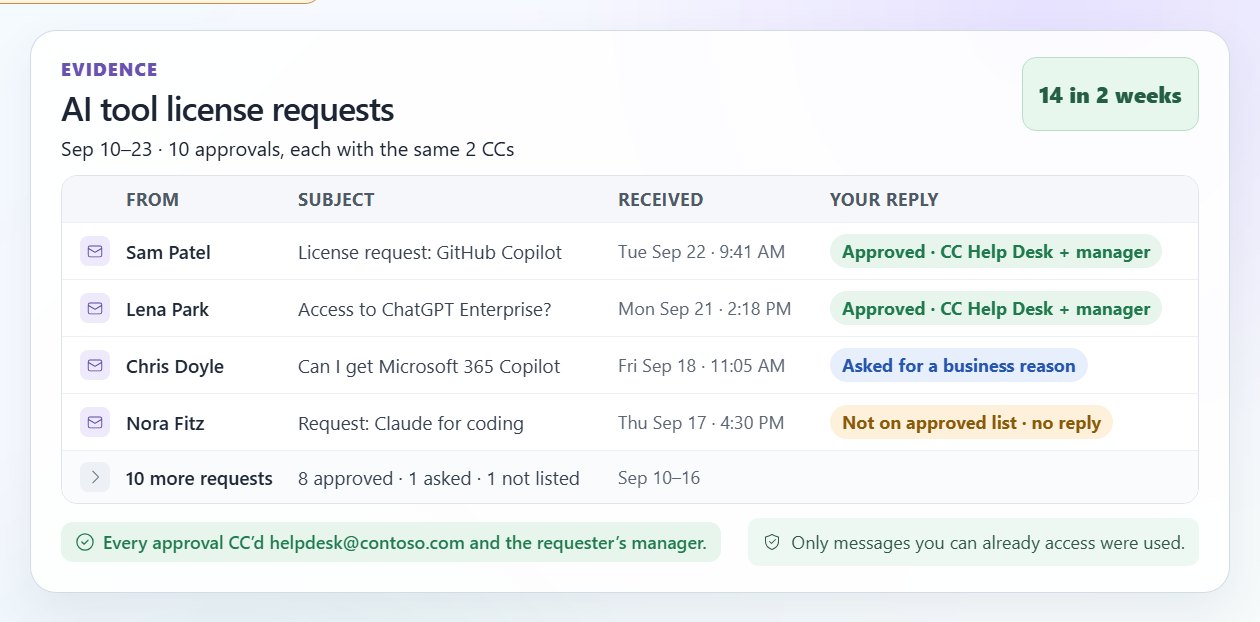
Patrick: The evidence checks out: same reply every time, always copying the help desk and the requester’s manager. That’s a business process, and processes can be automated.
Patrick: Every automation has the same four parts: when it runs, what it reads, the decisions it makes, and what it does.
Patrick: Here are my decisions. Is it a license request I haven’t answered? Is the tool on my approved list? If not, it waits for me.
Patrick: Is there a business reason? If not, ask for one. Then find the manager and write the approval, copying the help desk and the manager.
Patrick: And the guardrail: both on CC, and everyone at Contoso? Send it. Anything missing? Don’t send. Save a draft and flag it for me.
Patrick: The when becomes the automation. Everything else becomes the skill. You can build it on the Customize page, or just ask.
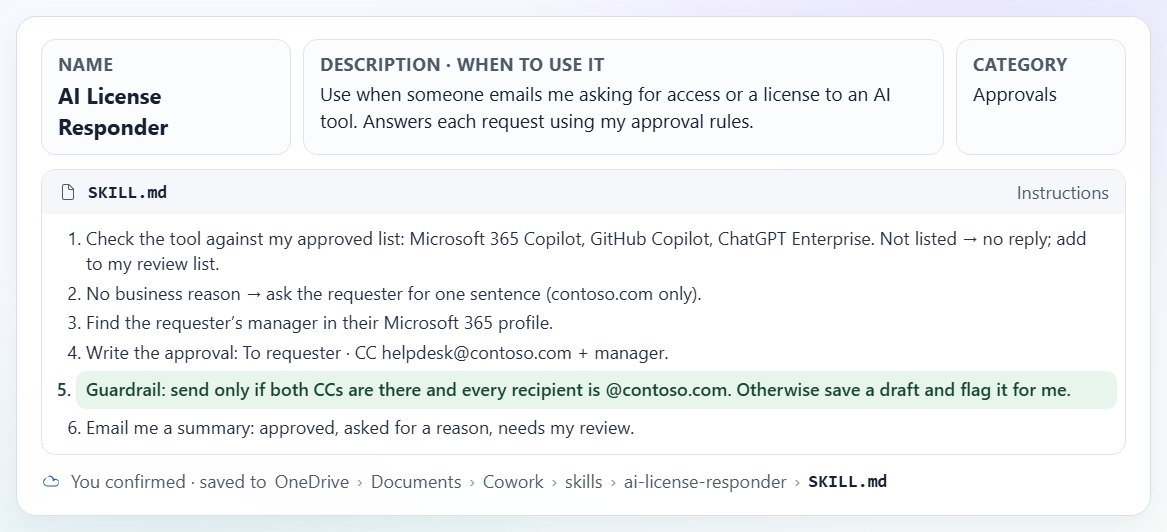
Patrick: Cowork walks me through a name, a description, and the instructions, and saves the skill to my OneDrive.
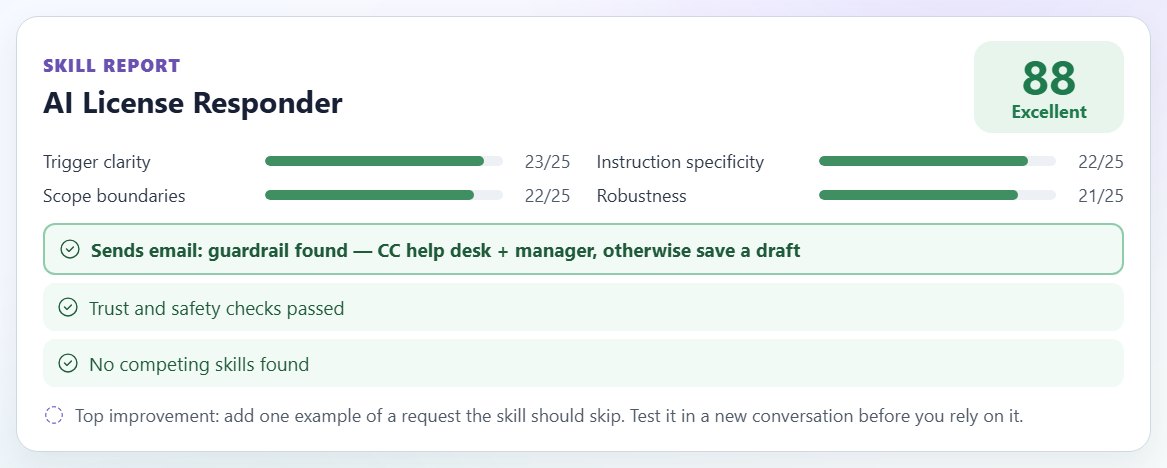
Patrick: It also checks the skill and gives it a report. Because it sends email, the check looks for guardrails, and mine is right there. Still, test it before you rely on it.
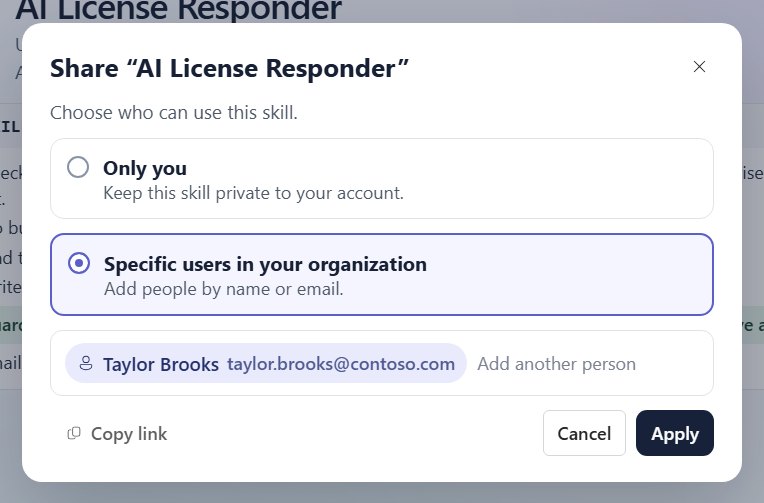
Patrick: When I’m out, Taylor, my backup, needs the same rules. On the Customize page, open the skill, select Share, and add Taylor. Change the rules later? Re-share.
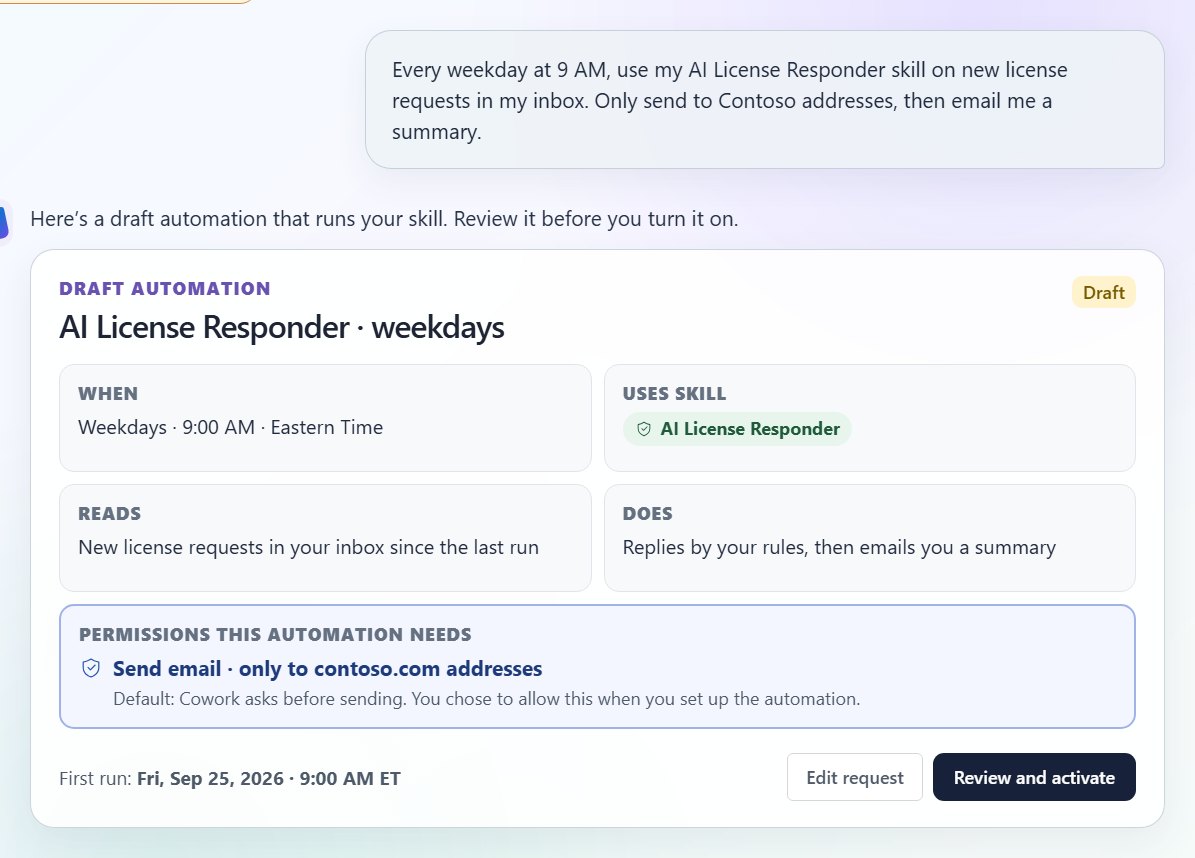
Patrick: Now the when. I describe the schedule and name the skill.
Patrick: Cowork drafts the automation: when, which skill, and the permission it needs. By default, it asks before an automated task sends email. I’m choosing to allow it, only to Contoso addresses.
Patrick: Activate waits for the next scheduled time. Activate and run now starts right away, so you can watch. I’ll watch the first run.
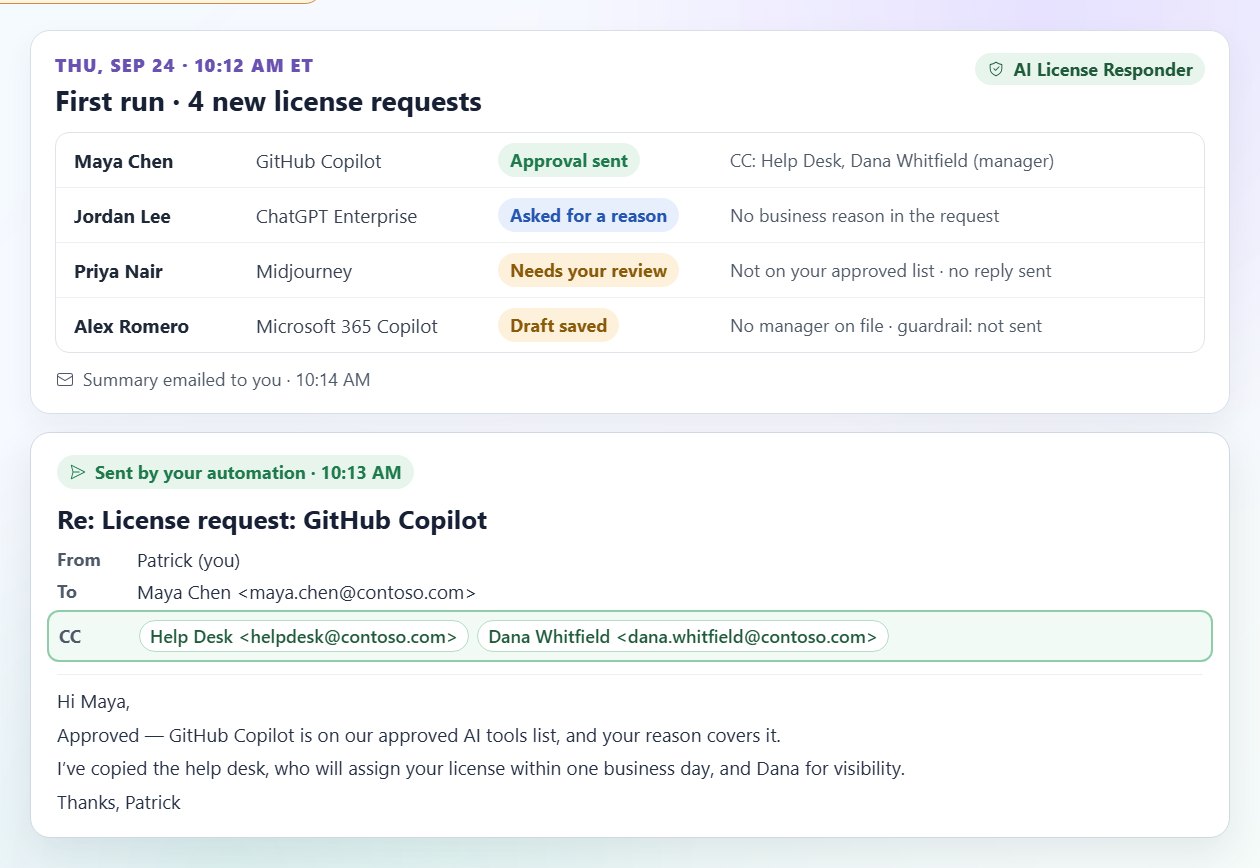
Patrick: Four requests. Maya’s approval went out, with the help desk and her manager, Dana, on CC. Jordan got asked for a reason. Priya’s tool isn’t approved, so it waits for me.
Patrick: And Alex? No manager on file, so no send. Just a draft, flagged for me. That’s the guardrail doing its job. And every run ends with a summary email of what needs me.
Patrick: It all lives under Automations. Runs shows each run; Manage schedules lets you pause, edit, or delete. And it runs on schedule, even when I’m not there.
Patrick: Find the chore, map the process, make it a skill, share it, schedule it, and guard anything that sends. Pick one repeat request in your inbox and try it this week.
Skills and automations in one minute
Open Microsoft 365 Copilot and select Cowork in the toggle next to Chat. Chat is for quick answers. Cowork handles work with several steps, and asks for your approval before important actions, like sending an email. It only uses email and files you can already access.
Two words do most of the work in this guide:
- A skill is the how. Reusable instructions for one kind of job, like answering license requests by your rules. Cowork saves it as a
SKILL.mdfile in your OneDrive. - An automation is the when. A schedule that tells Cowork to run a prompt, and that prompt can use your skill.
Skill for the rules, automation for the timing.
Steps 1–2: have Cowork find the repeat task, then check the evidence
Step 1: ask for recommendations only. Paste this into the Cowork task box. The last sentence keeps the first request read-only.
Step 2: check the evidence. Look at the emails behind the pick. Here every approval went out the same way, copying the help desk and the requester’s manager. A repeated reply with repeated rules is a business process, and processes can be automated.
Step 3: map the business process before you automate it
Every automation has the same four parts: when it runs, what it reads, the decisions it makes and what it does. Write yours down before you ask Cowork to build anything. The decisions are where your judgment lives, so spell them out as yes/no checks, and give each “no” a safe outcome.
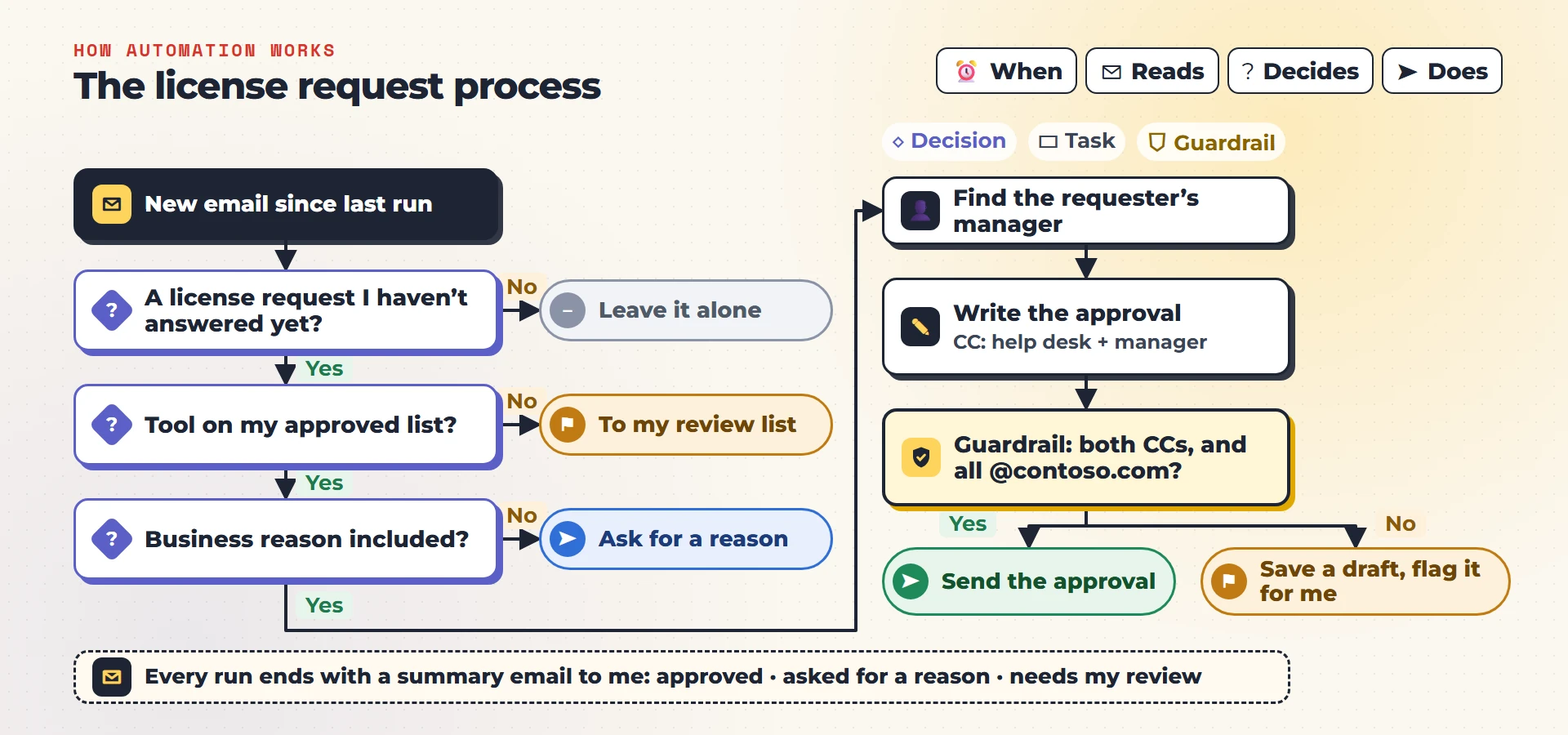
For license requests, the decisions are:
- Is it a license request I haven’t answered?If not, leave it alone.
- Is the tool on my approved list?If not, no reply. It goes on my review list.
- Is there a business reason?If not, reply and ask for one sentence explaining how they’ll use it.
- Find the manager and write the approvalTo the requester, with the help desk and the requester’s manager on CC.
- Guardrail: both on CC, and everyone @contoso.com?Send it. If anything is missing, don’t send: save a draft and flag it.
Step 4: turn the process into a skill, then share it
The when becomes the automation. Everything else becomes the skill. You can build a skill on the Customize page (Skills tab → Add → Create new), or just ask Cowork in chat. Cowork walks you through a name, a description that says when to use it, a category and the instructions, and saves the skill to your OneDrive.
Cowork also checks the skill and gives it a Skill Report. Because this skill sends email, the check looks for guardrails. Test it in a new conversation before you rely on it. Give it one sample request for each path on your map and check that each lands where the map says. For license requests that means one that should be approved, one with no business reason, one for a tool that isn’t on the list, and one with no manager on file. That last one has to stay a draft.
Share it with your backup. On the Customize page, open the skill, select Share, choose Specific users in your organization, add the person and select Apply. If you change the rules later, select Re-share so everyone gets the latest version.
Step 5: schedule the skill and stay in charge
Describe the schedule and name the skill. This is the demo’s version:
Cowork drafts the automation: when it runs, which skill it uses, and the permissions it needs. By default, Cowork asks for your approval before an automated task sends email. Keep that default for your first automation: approve each reply yourself and compare it with what you would have written. In the demo, sending was allowed when the automation was set up, and only to the company’s own addresses, because the process was already mapped and tested. Make that choice only after several runs where you approved every draft without changing it.
Activate waits for the next scheduled time. Activate and run now starts right away, so you can watch and approve actions. Watching the first run is a good habit. In the demo, four requests took four different paths: an approval went out with the help desk and the manager on CC, one person was asked for a reason, one tool that isn’t on the list waited for review, and one request with no manager on file stayed a draft. That last one is the guardrail doing its job.
Everything lives under Automations. Runs shows each run. Manage schedules lets you edit, pause, resume or delete. The task runs on schedule, even when you’re not there, and every run counts toward your organization’s Cowork usage. Microsoft bills Cowork by use, and admins can set a limit per person, so pick the least frequent schedule that does the job: once a weekday, not every hour.
Try it
Automate one repeat request this week
Give yourself about 30 minutes. The goal is one small, guarded automation you understand, not a perfect one.
- Confirm you have Cowork
Open Microsoft 365 Copilot. If Cowork appears next to Chat, you’re ready. If not, ask your IT team. Meanwhile, do step 3 with a chat assistant your organization allows, using the “No Cowork yet?” prompt, then practice the draft-only version in Automate a weekly task safely.
- Find the repeat task
Ask Cowork to review two weeks of email and just recommend. Pick something with the same rules every time, and check the evidence.
- Map the process on paper
Write down when it runs, what it reads, the yes/no decisions and what it does. Give every “no” a safe outcome, and add a guardrail to anything that sends.
- Make it a skill and share it
Ask Cowork to create the skill from your process and read the Skill Report. In a new conversation, test it with one sample request for each path on your map, including one that should trip the guardrail, and check where each one ends up. Then share it with your backup.
- Schedule it and watch the first run
Describe the schedule and name the skill, and leave out any permission to send, so Cowork asks before every reply. Choose Activate and run now, and check each draft against your map before you approve it.
You’ll know it worked when
An automation shows as Active under Automations, its first run followed your decisions, anything unusual reached you in the summary, and nothing was sent until you approved it.
When you’re ready
When a schedule isn’t the right trigger
A schedule is the easiest place to start. Cowork can also run event-driven tasks that start when a matching email or Teams message arrives. Those default to preparing actions for your approval rather than acting on their own.
Good next candidates have the same shape as license requests: several requests that arrive over time, clear yes/no rules, and a reply that follows a template. Keep anything that goes outside the company, or needs fresh judgment every time, as a manual task, even if Cowork could draft it.
Avoid these
Common mistakes
- Automating before mapping the process
If you can’t write the decisions as yes/no checks, Cowork can’t follow them reliably either. Map first.
- Letting a skill send without a guardrail
Anything that sends needs a condition that must be true first, like both CCs present and only company addresses, and a safe fallback such as a draft.
- Allowing automatic sends on the first run
Let several approved runs prove your rules before Cowork sends on its own, and even then only to company addresses.
- Scheduling a skill you haven’t tested
Before it runs on a schedule, run one sample request down every path on your map, including one that should be held as a draft.
- Waiting for Cowork to suggest automations
It won’t volunteer them. Ask it to review your email and recommend tasks.
- Changing a shared skill and forgetting to re-share
Your backup keeps the old rules until you select Re-share.
Copy, adapt, run
Prompts to try
The first four run in Cowork. The last one works in any chat assistant your organization allows. Replace anything in [brackets].
Ask Cowork to find the repeat task
Review my email from the last two weeks. Find repetitive tasks I keep doing that you could automate for me. Just recommend — don’t send or change anything.
Turn your process into a skill
Help me create a skill called [skill name] from this process. [Your yes/no decisions]. [What it does when everything checks out, including who must be on CC]. If anything is missing, don’t send — save a draft and flag it for me.
Test the skill before you schedule it
Test my [skill name] skill without sending anything. Here are sample requests: [one that should be approved], [one missing a business reason], [one for a tool not on my list], [one that should trip the guardrail, like no manager on file]. For each, show the draft or action you would take and the rule that decided it.
Schedule the skill
Every [day] at [time], use my [skill name] skill on [what it should read]. Prepare each reply for my approval instead of sending it, then email me a summary.
No Cowork yet? Map the process with any chat assistant
Here are five examples of a request I answer the same way every time, with names and private details removed: [paste the requests and my replies]. Write the rules I seem to follow as yes/no decisions, what I do when each answer is no, and one guardrail that must be true before a reply is sent. Then list anything you had to guess and the questions I should answer.
The tool kit
Tools and links
- Microsoft Learn: Use CoworkCustom skills, the Skill Report, scheduled prompts, Automations, Runs and Manage schedules.
- Microsoft Learn: Customize CoworkThe Skills tab, uploading skills, and sharing and re-sharing.
- Microsoft Learn: Manage Cowork for your organizationAutomated tasks, approval controls and pre-authorizing actions.
- Microsoft Learn: Cowork FAQPermissions, approvals, access and how Cowork is billed.
- HyperFrames and GPT LiveHow the training video was made: HeyGen’s open-source HTML-to-video framework, with Patrick’s narration voiced by GPT Live.
The short version
What to remember
- Cowork sits next to Chat in Microsoft 365 Copilot. No Cowork yet? Map the process in any chat assistant and ask IT.
- A skill is the how, and an automation is the when.
- Map the process first: when, reads, decides, does.
- Put a guardrail on anything that sends, with a safe fallback.
- Share skills with your backup, and re-share after changes.
- Keep approval on and watch the first runs. Manage everything under Automations.