 patrickz
A tool with no mouse and no voice
My girlfriend could not speak and could barely move one hand after her stroke. She needed a way to say what she wanted without a mouse and without her voice. That was the whole brief. Not “make something impressive.” Make something she could actually use.
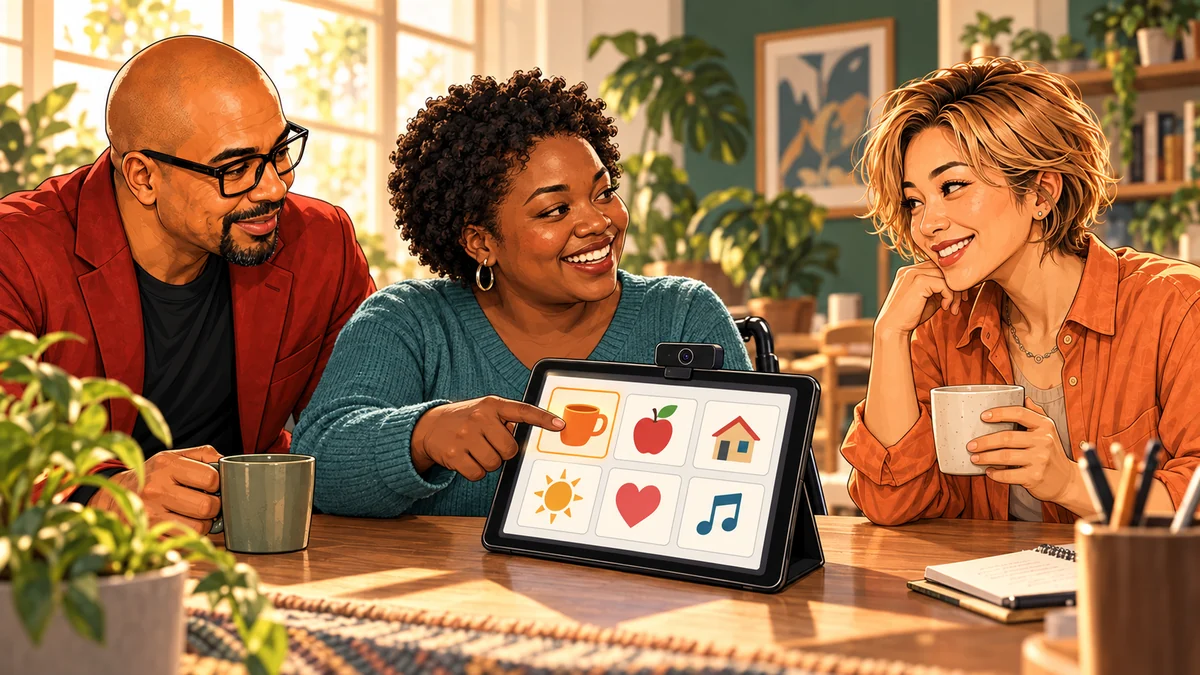
I started in a hospital waiting room, with ChatGPT and an AAC board. AAC stands for augmentative and alternative communication: tools that let someone point to words or pictures that a device can show or speak aloud. I simplified the menus. I added Thai and placed English beside it, so I could confirm what she meant. I cut the options down to short words she could select.
Later, I connected open-source hand-gesture control and eye tracking to AAC software such as TD Snap. The whole thing ran on a webcam, a tablet, and software instead of specialized custom hardware. The technical prototype cost hundreds of dollars rather than many thousands.
It was not a medical device. It was a working path to communication. And the most important design review wasn't mine. It was hers. The tool succeeded when she could express what she meant, not when my code ran.
People usually describe AI in terms of efficiency. This was about something else: giving her a way to participate. The lesson surprised me. Accessibility demanded less automation and more listening.
Start with the person, not the feature list
Most people come to AI asking, “What can this do for my productivity?” Some of the best projects start with a different question: “What does this one person need, and what gets in their way?”
Building for one real person means you design around their priorities, their abilities, and their day, instead of an imaginary average user. Before choosing any tool, I ask:
- What movement or action is reliable for them?
- How long can they keep it up before they get tired?
- Which choices matter most to them?
- Which language are they comfortable in?
- What causes fatigue or confusion?
- Who will set it up and support it when something goes wrong?
Here's an everyday version. Picture an older relative who finds their phone stressful. The icons are tiny, there are forty apps, and one wrong swipe opens something they don't understand. You could teach them the whole phone. Or you could ask what they actually want to do. Maybe it's three things: call their daughter, see photos of the grandkids, and check the weather. Now the job is clear: one screen, three big buttons, nothing to get lost in. The same goes for a teammate's one awkward daily task: build for their exact workflow, not “everyone in the office.”
Write the needs in their order, not yours. For my girlfriend, the top of the list was basic communication like yes, no, comfort, and the people who matter. Not the tracking tech I was excited about.
Pick the easiest input that works every time
An input is how the person tells the tool what they want. The rule I follow: choose the lowest-effort input that works reliably for them. In order of simplicity, that might be touch, a single switch (one big button), head tracking, a hand gesture seen by a webcam, or eye gaze, which a professional should evaluate. “Reliable” can change from day to day as fatigue and recovery change, so a good tool supports more than one input.
Then test something tiny before adding more: a handful of large, high-contrast buttons. Give control over dwell time, which is how long you rest your gaze or pointer on a button before it counts as a press. Show a clear confirmation before the tool speaks a choice. Short one-word options reduce mental effort, but they also remove nuance, so the person must always be able to reject, correct, or expand a choice.
Measure what matters to them, and keep a way out
The right success measure was never lines of code. It was whether she could get her message across with less effort and fewer misunderstandings. Whoever you build for, measure the things they feel:
- Accuracy: did the button they meant get pressed?
- False activations: how often did something trigger by accident?
- Fatigue: how tired were they after ten minutes?
- Recovery: when it froze or lost calibration, how fast could a helper get it running again?
Always provide a non-AI fallback, like a printed paper board, and a clear, obvious way to stop the system. Never route anything urgent through an experimental tool without it. For the phone example, that's a printed card with three phone numbers.
Privacy and consent are part of the design. A camera pointed at someone's face is sensitive. Prefer tools that process on the device, store as little as possible, protect any API keys (the passwords your code uses to reach an online service), and ask for consent.
Bring in qualified people early. For communication tools, that means an occupational therapist, speech-language pathologist, or assistive-technology professional. AI can help you document and adapt. It must not replace their assessment. Not medical advice: evaluate any assistive setup with qualified clinicians and the person who will use it.
Where AI actually helps
AI didn't design the tool. Her needs did. What AI did was shorten the path from research to a working trial. In the waiting room, ChatGPT helped me customize and simplify the board. Later, an AI coding assistant helped me connect existing open-source tools and wrote small setup scripts. That turned my research into something we could actually test.
But a prototype is not the same as dependable support. Someone has to calibrate it, charge it, clean it, fix it, and update it for as long as it's needed. Prototype cost is not lifetime support cost. If you're turning a trial into real software, build it one proven slice at a time.
Try it
Try it in 15 minutes
You need any chat assistant, a sheet of paper, and an invented person. Don't use real health details about anyone. Use the first prompt below to run all of it, or follow the steps one at a time.
- Invent one person
Write two sentences about someone who needs a simple tool. Example: “Ruth is 80, has shaky hands, and finds her phone confusing. She mostly wants to call her son and hear the weather.”
- List needs in their priorities
Ask the assistant to interview you with this prompt, replacing [person] with your two sentences. Then ask it to rank the needs in the person's order.
Interview me about [person], one question at a time: what they most need to do, what movement is reliable, what tires or confuses them, and who helps them.
- Design a six-button screen
Ask for the screen with this prompt. Cut anything outside the top needs.
Design a one-screen tool or communication board with exactly six large buttons for [person], one or two words each, including Stop.
- Choose the input
Ask which input is lowest-effort for this person (touch, one switch, head movement, or gesture) and what could go wrong. Pick one and write why.
- Plan the fallback and the stop
Sketch the six buttons on paper: that's your non-AI fallback. Add one line on how to stop the tool and one on what happens if it breaks.
- Define success their way
Ask for four simple checks: accuracy, accidental presses, tiredness, and how fast a helper can recover it.
You’ll know it worked when
You have one page with six prioritized buttons, a chosen input, a paper fallback, a stop plan, and four checks that measure their experience, not your code.
When you’re ready
Go further
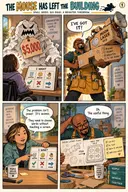
I later turned this idea into Reach, a free browser-based communication board with a public repository. Try it with touch or click first; its camera inputs are experimental. For a hands-on version, work through Design an accessible communication board. If your one-person tool might help others too, Build a useful free tool: lessons from Reach covers sharing it. For the lighter take, read the comic The Mouse Has Left the Building.
If you're exploring real assistive options, look at TD Snap, OptiKey, and Camera Mouse in the tool list, and bring your notes to a qualified professional. Once something works, turn your setup notes into a one-page helper checklist: start, calibrate, communicate, recover, charge, clean, privacy, and who to call.
Avoid these
Common mistakes
- Starting with the tech
Eye tracking is exciting. It's the wrong start if a big touch button would work.
- Too many options too soon
Pages of choices feel generous but exhaust people. Prove a tiny set works, then add personal words and phrases.
- No fallback, no off switch
Cameras lose calibration and batteries die. Without a paper backup and a clear stop, the tool fails exactly when it matters.
- Calling the prototype finished
A working demo isn't dependable support. Plan who maintains it and get professional guidance first.
Copy, adapt, run
Prompts to try
Paste one into any chat assistant and replace anything in [brackets].
15-minute practice: design for one person
I'm practicing designing a simple tool for one invented person: [two sentences about them, no real health details]. Interview me one question at a time about what they most need to do, which movement is reliable for them, what tires or confuses them, and who helps them. Stop after five questions. Then: 1) rank their needs in their order; 2) design one screen with exactly six large buttons, one or two words each, including Stop; 3) recommend the lowest-effort input (touch, one switch, head movement or gesture) and what could go wrong; 4) describe a paper fallback and how to stop the tool; 5) give four checks: accuracy, accidental presses, tiredness and how fast a helper can recover it.
Needs-discovery assistant
Help me organize questions for a qualified AAC or rehabilitation professional. Do not recommend a device or diagnose ability. Ask about communication priorities, languages, vision, fatigue, reliable movements, positioning, cognition, environment, caregiver support, privacy, fallbacks, and how success will be measured.
Accessibility test plan
Create a short supervised evaluation for this prototype: [describe prototype]. Include target size, contrast, dwell time, false activation, calibration drift, fatigue, message completion time, caregiver recovery, offline fallback, and stop conditions. Protect sensitive data and do not make clinical claims.
One-page helper checklist
Turn these verified setup notes into a one-page caregiver checklist with start, calibrate, communicate, recover, charge, clean, privacy, and support steps. Use plain language and pictures where possible. Notes: [paste notes]
The tool kit
Tools and links
- ReachPatrick's free browser-based communication board with a public repository. Start with touch; camera input is experimental.
- OptiKeyFree, open-source on-screen keyboard and AAC project.
- Camera MouseFree webcam-based pointer control to explore.
- TD SnapCommercial AAC software to evaluate with professionals.
- MediaPipe Hand LandmarkerFor prototyping hand-gesture input.
- OpenAI text-to-speech docsOptional generated speech for spoken output.
The short version
What to remember
- Start with one person's needs in their order, not with the coolest feature.
- Choose the lowest-effort input that works reliably for them, and test a tiny set first.
- Measure accuracy, fatigue, accidental presses, and recovery, not lines of code.
- Always keep a non-AI fallback, a clear stop, consent, and qualified professional guidance.